1. Check what kind of document you have
A PDF notebook can contain page links without containing fillable form fields. Writing may depend on an app’s pen and text tools rather than boxes built into the file. Check the product description for those distinctions before purchasing software or importing an important set of notes.
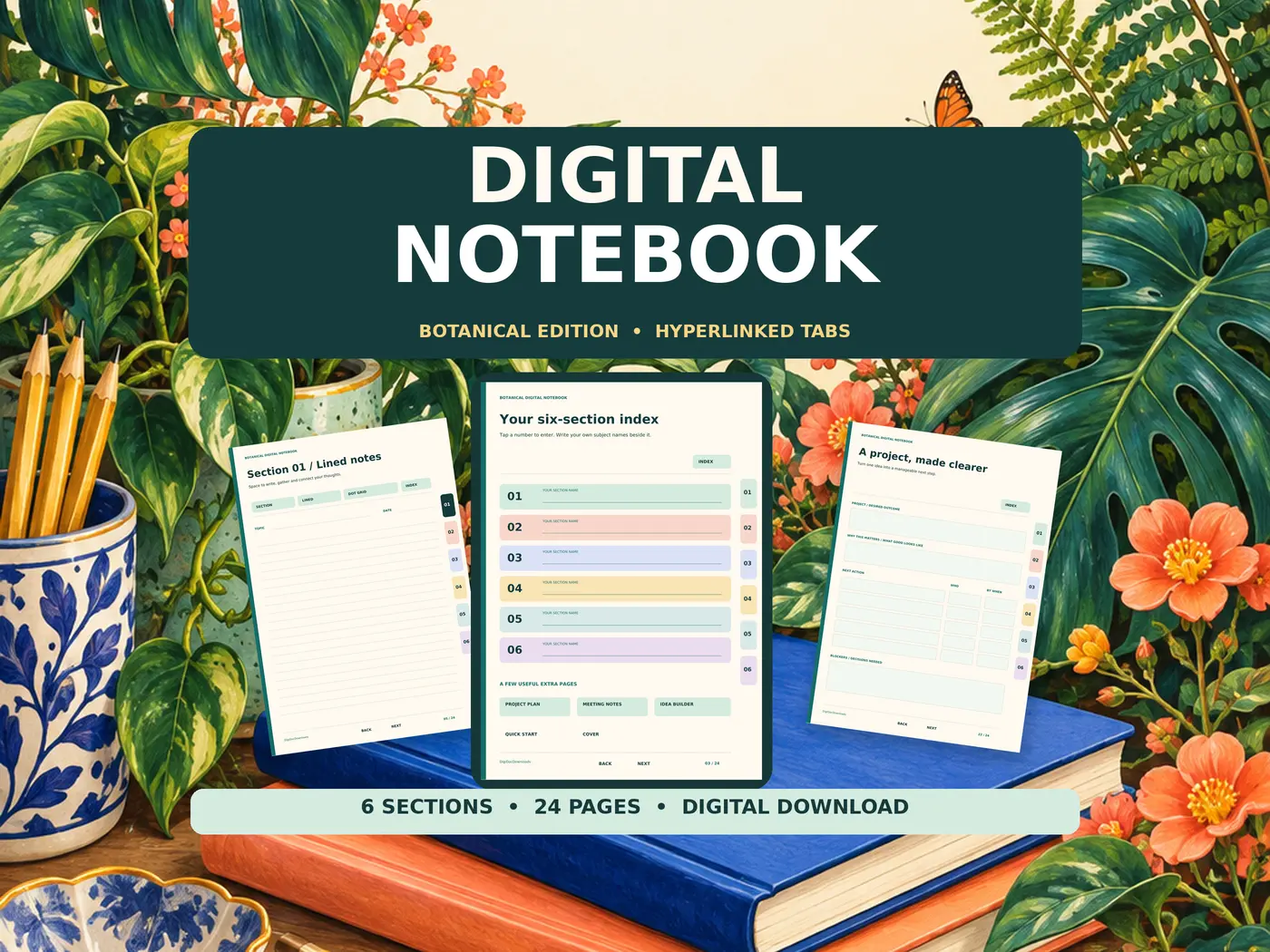
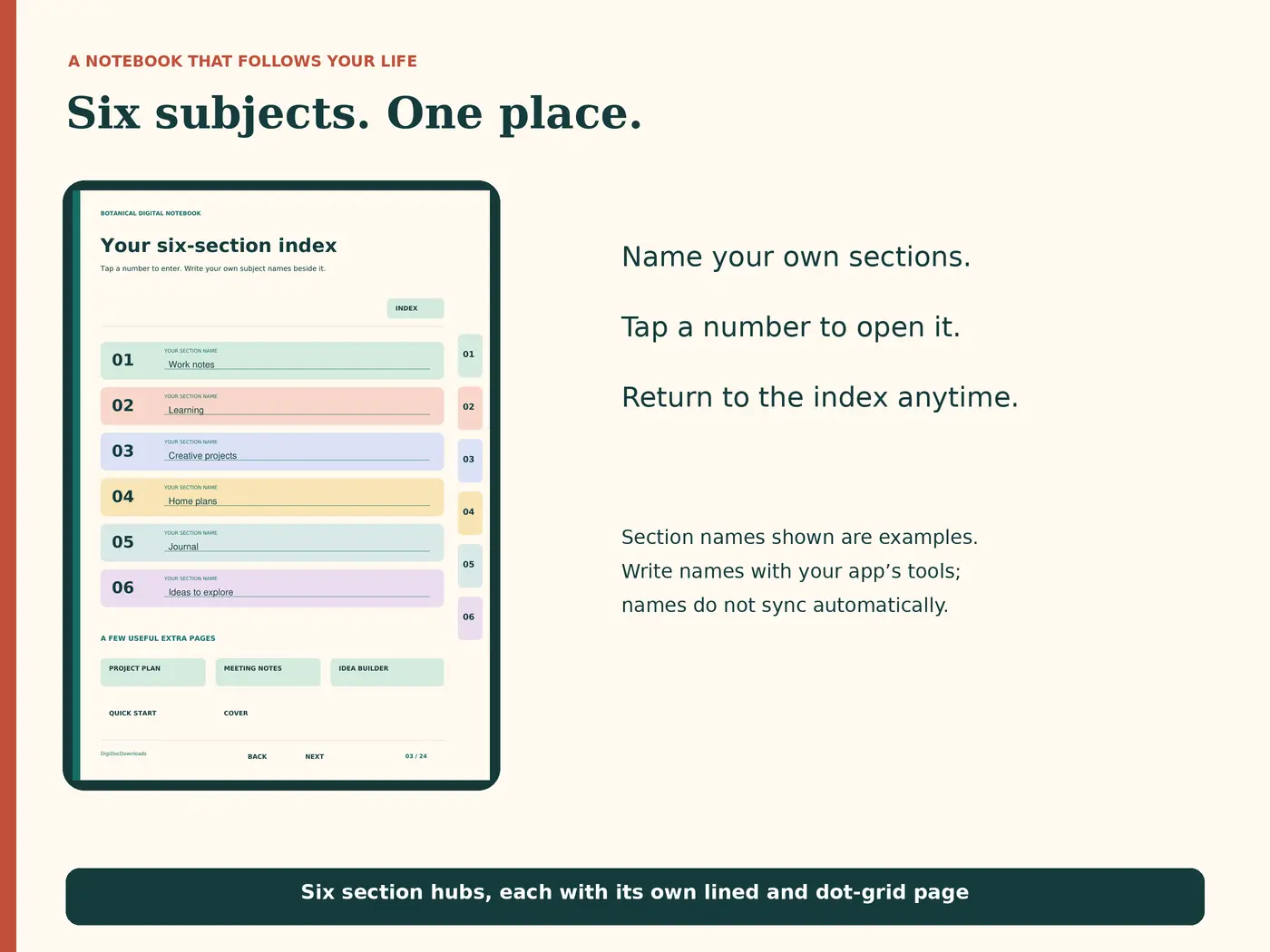
Our Botanical Digital Notebook is a twenty-four-page PDF with six linked sections, lined and dot-grid pages and extra templates. It needs a PDF annotation app that supports internal hyperlinks. It is not a fillable form, and its section names do not update automatically when you write a new label.
2. Import a clean copy
Keep the original download untouched and import a copy into your chosen app using its current PDF instructions. Give the notebook a clear name that describes its purpose. Start with a small test document if the app’s platform or version support is uncertain.
Confirm that the cover, index and first section appear correctly. Do not assume every app using “PDF” in its description preserves links in the same way. A viewer may navigate well while offering limited writing tools; an annotation app may require a different mode for following links.
3. Test navigation before writing
Open one numbered tab, return to the index and try a link from another section. Goodnotes’ official guidance for imported PDF hyperlinks explains navigation using its reading mode or link controls. Use the instructions for your actual platform and version; menu labels and available features can differ.
If tapping draws a dot, check whether the pen is active before concluding the link is broken. Switch to the app’s appropriate navigation mode and try again. If links still fail, consult the app’s support and test the original PDF in a suitable viewer to distinguish an import issue from a file issue.
4. Give the fixed sections useful names
Choose six broad subjects you expect to revisit: reading, projects, learning, household notes, ideas and reference, for example. Add section names using the app’s supported annotation tools. Remember that the numbered tabs remain fixed; a handwritten heading does not rename the document’s internal navigation automatically.
For inspiration, browse the Smithsonian’s historical commonplace book and Mary Smith’s science and mathematics notes. They offer original examples of collecting ideas. Our commonplace-book story explains how one sentence about why a note matters can make it easier to use later.
5. Make a small writing-and-saving test
Add a short text note and a pen mark to a spare page. Close and reopen the notebook, then check both are still present. Try editing the text and undoing a mark so that the controls are familiar before a longer session.
If exporting a PDF, check the exported copy independently: does it show your notes, and do its links still work? Keep the app’s editable working document as well if that is how further editing is supported. An export and a backup are not always the same kind of file.
6. Build a routine that stays small
Date useful entries and add a page reference or link when a note belongs with another subject. Use the included project plan and idea-builder pages where they help, rather than moving every thought into a template. Selected pages can also be printed on A4.
Review a few notes periodically and save a backup using the app’s supported method. Once the tabs, tools and saved copy have passed a small test, the notebook can do its ordinary job: keeping useful material in a place where you can find it again.
Explore Botanical Digital Notebook
More to read, make and discover
A few useful, interesting and checked routes into the subject.
- Further readingGoodnotes: hyperlinks in imported PDFs
Official guidance; features and menus depend on platform and version.
- Further readingSmithsonian Libraries: a commonplace book
Browse a digitised manuscript dated 1723–1726.
- Further readingSmithsonian: Mary Smith’s science and mathematics notebook
A digitised eighteenth-century collection of scientific and mathematical notes.